Using difPy
difPy is a Python package that automates the search for duplicate/similar images.
Installation
To use difPy, first install it using pip:
(.venv) $ pip install difPy
View difPy on PyPi.
Basic Usage
difPy is split into two main processes:
buildwhich builds the image repository from the directories provided (difPy.build) andsearchwhich performs the actual search operation (difPy.search).
First we need to build the dif object:
import difPy
dif = difPy.build("C:/Path/to/Folder/")
And then we can perform one or more different searches on the same dif object:
search_duplicates = difPy.search(dif, similarity="duplicates")
search_similar = difPy.search(dif, similarity= "similar")
We can obtain the search results as follows (see Output):
search_duplicates.result
search_similar.result
difPy supports searching for duplicate and similar images within a single or multiple directories.
I. Single Folder Search
Search for duplicate images in a single folder:
import difPy
dif = difPy.build('C:/Path/to/Folder/')
search = difPy.search(dif)
II. Multi Folder Search
Search for duplicate images in multiple folders:
import difPy
dif = difPy.build('C:/Path/to/Folder_A/', 'C:/Path/to/Folder_B/', 'C:/Path/to/Folder_C/', ...)
search = difPy.search(dif)
or add a list of folders:
import difPy
dif = difPy.build(['C:/Path/to/Folder_A/', 'C:/Path/to/Folder_B/', 'C:/Path/to/Folder_C/', ... ])
search = difPy.search(dif)
Folder paths must be specified as either standalone Python strings, or in a Python list.
difPy can search for duplicates in the union of all folders it finds, or only for duplicates within separate/isolated directories. See in_folder (bool).
difPy leverages multiprocessing for both the build and the search process.
CLI Usage
difPy can be invoked through a CLI interface by using the following commands:
python dif.py #working directory

python dif.py -D 'C:/Path/to/Folder/'

python dif.py -D 'C:/Path/to/Folder_A/' 'C:/Path/to/Folder_B/' 'C:/Path/to/Folder_C/'
Note
Windows users can add difPy to their PATH system variables by pointing it to their difPy package installation folder containing the difPy.bat file. This adds difPy as a command in the CLI and will allow direct invocation of difPy from anywhere on the machine. The default difPy installation folder will look similar to C:\Users\User\AppData\Local\Programs\Python\Python311\Lib\site-packages\difPy (Windows 11).
difPy in the CLI supports the following arguments:
dif.py [-h] [-D DIRECTORY [DIRECTORY ...]] [-Z OUTPUT_DIRECTORY]
       [-r {True,False}] [-i {True,False}] [-le {True,False}]
       [-px PX_SIZE]  [-s SIMILARITY] [-ro {True,False}]
       [-la {True,False}] [-proc PROCESSES] [-ch CHUNKSIZE]
       [-mv MOVE_TO] [-d {True,False}] [-sd {True,False}]
       [-p {True,False}]
Cmd |
Parameter |
Cmd |
Parameter |
|---|---|---|---|
|
|
||
|
output_directory |
|
|
|
|
||
|
|
move_to (see search.move_to) |
|
|
|
delete (see search.delete) |
|
|
|
||
|
|
||
|
If no directory parameter is given in the CLI, difPy will run on the current working directory.
The output of difPy is written to files and saved in the working directory by default. To change the default output directory, specify the -Z / -output_directory parameter. The “xxx” in the output filenames is the current timestamp:
difPy_xxx_results.json
difPy_xxx_lower_quality.txt
difPy_xxx_stats.json
Parameters
difPy.build
Before difPy can perform any search, it needs to build its image repository and transform the images in the provided directory into tensors. This is what is done when difPy.build() is invoked.
Upon completion, difPy.build() returns a dif object that can be used in difPy.search to start the search process.
difPy.build supports the following parameters:
difPy.build(*directory, recursive=True, in_folder=False, limit_extensions=True, px_size=50, show_progress=True, processes=None)
Parameter |
Input Type |
Default Value |
Other Values |
|---|---|---|---|
|
|||
|
|
|
|
|
|
||
|
|
|
|
|
50 |
|
|
|
|
|
|
|
|
|
Note
If you want to reuse the image tensors generated by difPy, you can access the generated repository by calling difPy.build._tensor_dictionary. To reverse the image IDs to the original filenames, use difPy.build._filename_dictionary.
directory (str, list)
difPy supports single and multi-folder search.
Single Folder Search:
import difPy
dif = difPy.build("C:/Path/to/Folder/")
search = difPy.search(dif)
Multi Folder Search:
import difPy
dif = difPy.build(["C:/Path/to/Folder_A/", "C:/Path/to/Folder_B/", "C:/Path/to/Folder_C/", ... ])
search = difPy.search(dif)
Folder paths can be specified as standalone Python strings, or within a list.
recursive (bool)
By default, difPy will search for matching images recursively within the subdirectories of the directory (str, list) parameter. If set to False, subdirectories will not be scanned.
True = (default) searches recursively through all subdirectories in the directory paths
False = disables recursive search through subdirectories in the directory paths
in_folder (bool)
By default, difPy will search for matches in the union of all directories specified in the directory (str, list) parameter. To have difPy only search for matches within each folder separately, set in_folder to True.
True = searches for matches only among each individual directory, including subdirectories
False = (default) searches for matches in the union of all directories
limit_extensions (bool)
Warning
Recommended not to change default value. Only adjust this value if you know what you are doing. difPy result accuracy can not be guaranteed for file formats not covered by “limit_extensions”.
By default, difPy only searches for images with a predefined file type. This speeds up the process, since difPy does not have to attempt to decode files it might not support. Nonetheless, you can let difPy try to decode other file types by setting limit_extensions to False.
Note
Predefined image types includes: apng, bw, cdf, cur, dcx, dds, dib, emf, eps, fli, flc, fpx, ftex, fits, gd, gd2, gif, gbr, icb, icns, iim, ico, im, imt, j2k, jfif, jfi, jif, jp2, jpe, jpeg, jpg, jpm, jpf, jpx, jpeg, mic, mpo, msp, nc, pbm, pcd, pcx, pgm, png, ppm, psd, pixar, ras, rgb, rgba, sgi, spi, spider, sun, tga, tif, tiff, vda, vst, wal, webp, xbm, xpm.
True = (default) difPy’s search is limited to a set of predefined image types
False = difPy searches through all the input files
difPy supports most popular image formats. Nevertheless, since it relies on the Pillow library for image decoding, the supported formats are restricted to the ones listed in the Pillow Documentation. Unsupported file types will by marked as invalid and included in the process statistics output under invalid_files (see III. Process Statistics).
px_size (int)
Note
Recommended not to change default value.
Absolute size in pixels (width x height) of the images before being compared. The higher the px_size, the more precise the comparison, but in turn more computational resources are required for difPy to compare the images. The lower the px_size, the faster, but the more imprecise the comparison process gets.
By default, px_size is set to 50.
Manual setting: px_size can be manually adjusted by setting it to any int.
show_progress (bool)
By default, difPy will show a progress bar of the running process.
True = (default) displays the progress bar
False = disables the progress bar
processes (int)
Warning
Recommended not to change default value. Only adjust this value if you know what you are doing.
difPy leverages Multiprocessing to speed up the image comparison process, meaning multiple comparison tasks will be performed in parallel. The processes parameter defines the maximum number of worker processes (i. e. parallel tasks) to perform when multiprocessing. The higher the parameter, the more performance can be achieved, but in turn, the more computing resources will be required. To learn more, please refer to the Python Multiprocessing documentation.
By default, processes is set to os.cpu_count(). This means that difPy will spawn as many processes as number of CPUs in your machine, which can lead to increased performance, but can also cause a big computational overhead depending on the size of your dataset. To reduce the required computing power, it is recommended to reduce this value.
Manual setting: processes can be manually adjusted by setting it to any int. It is dependant on values supported by the process parameter in the Python Multiprocessing package. To learn more about this parameter, please refer to the Python Multiprocessing documentation.
logs (bool)
logs was deprecated as of v4.1. See the release notes.
difPy.search
After the dif object has been built using difPy.build, the search can be initiated with difPy.search.
When invoking difPy.search(), difPy starts comparing the images to find duplicates or similarities, based on the MSE (Mean Squared Error) between both image tensors. The target similarity rate i. e. MSE value is set with the similarity (str, int) parameter.
After the search is completed, further actions can be performed using search.move_to and search.delete.
difPy.search(difPy_obj, similarity='duplicates', rotate=True, lazy=True, processes=None, chunksize=None, show_progress=False)
difPy.search supports the following parameters:
Parameter |
Input Type |
Default Value |
Other Values |
|---|---|---|---|
|
|||
|
|
|
|
|
|
|
|
|
|
|
|
|
|
|
|
|
|
|
|
|
|
|
difPy_obj
The required difPy_obj parameter should be pointing to the dif object that was built during the invocation of difPy.build.
similarity (str, int)
difPy compares the images to find duplicates or similarities, based on the MSE (Mean Squared Error) between both image tensors. The target similarity rate i. e. MSE value is set with the similarity parameter.
"duplicates" = (default) searches for duplicates. MSE threshold is set to 0.
"similar" = searches for similar images. MSE threshold is set to 5.
The search for similar images can be useful when searching for duplicate files that might have different file types (i. e. imageA.png has a duplicate imageA.jpg) and/or different file sizes (f. e. imageA.png (100MB) has a duplicate imageA.png (50MB)). In these cases, the MSE between the two image tensors might not be exactly == 0, hence they would not be classified as being duplicates even though in reality they are. Setting similarity to "similar" searches for duplicates with a certain tolerance, increasing the likelihood of finding duplicate images of different file types and sizes. Depending on which similarity level is chosen, the lazy parameter should be adjusted accordingly (see lazy (bool)).
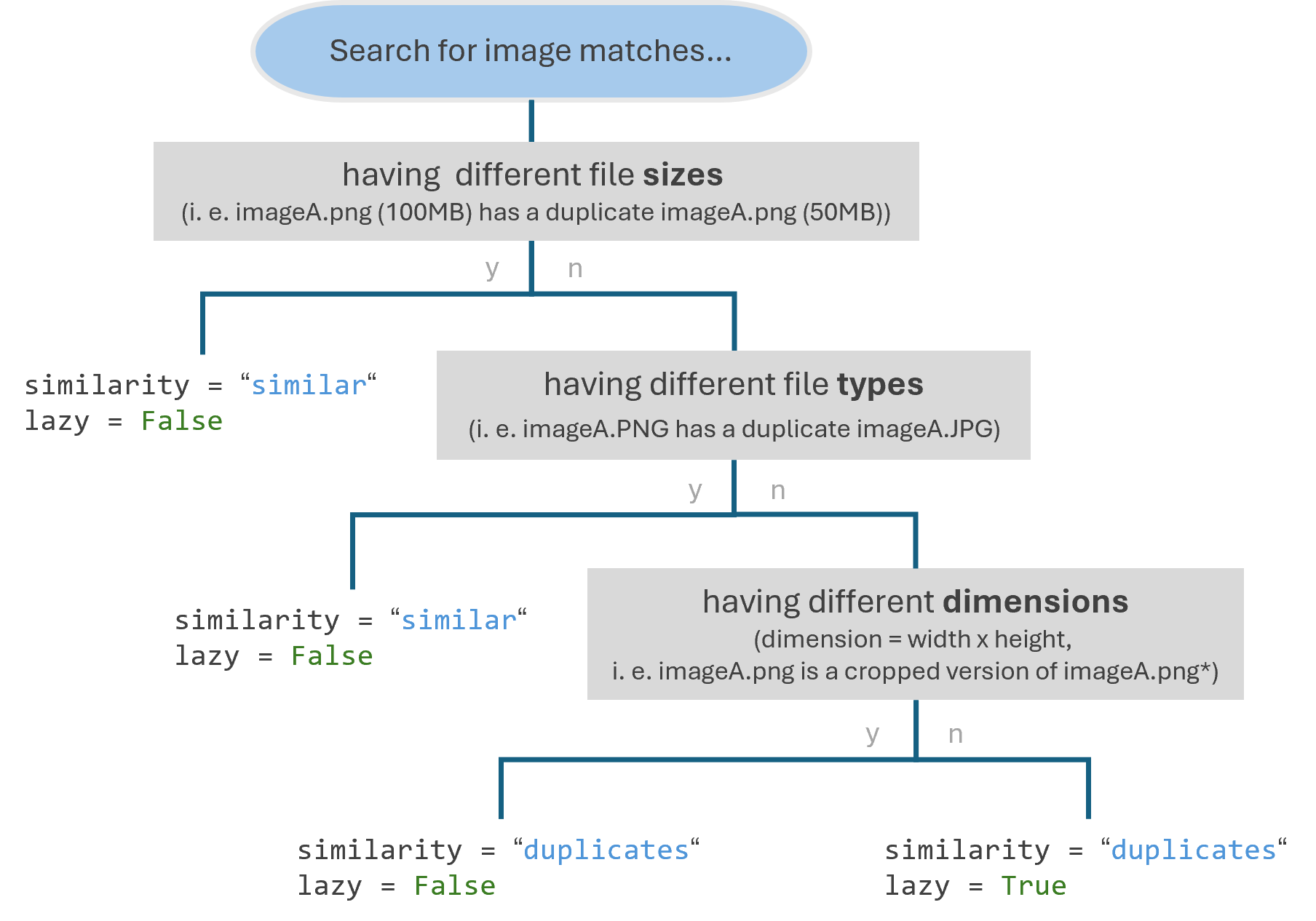
Setting the “similarity” and “lazy” parameter
Manual setting: the match MSE threshold can be adjusted manually by setting the similarity parameter to any int or float. difPy will then search for images that match an MSE threshold equal to or lower than the one specified.
lazy (bool)
By default, difPy searches using a Lazy algorithm. This algorithm assumes that the image matches we are looking for have the same dimensions, i. e.duplicate images have the same width and height. If two images do not have the same dimensions, they are automatically assumed to not be duplicates. Therefore, because these images are skipped, this algorithm can provide a significant improvement in performance.
True = (default) applies the Lazy algorithm
False = regular algorithm is used
When should the Lazy algorithm not be used?
The Lazy algorithm can speed up the comparison process significantly. Nonetheless, the algorithm might not be suited for your use case and might result in missing some matches. Depending on which similarity level is chosen, the lazy parameter should be adjusted accordingly (see similarity (str, int)). Set lazy = False if you are searching for duplicate images with:
different file types (i. e. imageA.png is a duplicate of imageA.jpg)
and/or different file sizes (i. e. imageA.png (100MB) is a duplicate of imageA_compressed.png (50MB))
rotate (bool)
By default, difPy will rotate the images on comparison. In total, 3 rotations are performed: 90°, 180° and 270° degree rotations.
True = (default) rotates images on comparison
False = images are not rotated before comparison
show_progress (bool)
By default, difPy will show a progress bar of the running process.
True = (default) displays the progress bar
False = disables the progress bar
processes (int)
Warning
Recommended not to change default value. Only adjust this value if you know what you are doing.
difPy leverages Multiprocessing to speed up the image comparison process, meaning multiple comparison tasks will be performed in parallel. The processes parameter defines the maximum number of worker processes (i. e. parallel tasks) to perform when multiprocessing. The higher the parameter, the more performance can be achieved, but in turn, the more computing resources will be required. To learn more, please refer to the Python Multiprocessing documentation.
By default, processes is set to os.cpu_count(). This means that difPy will spawn as many processes as number of CPUs in your machine, which can lead to increased performance, but can also cause a big computational overhead depending on the size of your dataset. To reduce the required computing power, it is recommended to reduce this value.
Manual setting: processes can be manually adjusted by setting it to any int. It is dependant on values supported by the process parameter in the Python Multiprocessing package. To learn more about this parameter, please refer to the Python Multiprocessing documentation.
chunksize (int)
Warning
Recommended not to change default value. Only adjust this value if you know what you are doing.
chunksize is only used when dealing with image datasets of more than 5k images. See the “Using difPy with Large Datasets” section for further details.
difPy leverages a different comparison algorithm depending on the size of the input dataset. If the dataset contains more than 5k images, then the Chunking algorithm is used, which leverages generators and vectorization for more efficient computation with large datasets. The chunksize parameter defines how many chunks of image sets should be compared at once. Therefore, the higher the chunksize value, the faster the computation but the higher the memory consumption.
The chunksize parameter is already automatically set to an optimal value relative to the size of the dataset. Nonetheless, it can also be adjusted manually, in order to provide more control over Multiprocessing strategies and memory consumption.
By default, chunksize is set to None which implies: 1'000'000 / number of images in dataset. Parameter can only be >= 1.
Manual setting: chunksize can be manually adjusted by setting it to any int >= 1.
logs (bool)
logs was deprecated as of v4.1. See the release notes.
search.move_to
difPy can automatically move the lower quality duplicate/similar images it found to another directory. Images can be moved by invoking search.move_to:
import difPy
dif = difPy.build("C:/Path/to/Folder_A/")
search = difPy.search(dif)
search.move_to(destination_path="C:/Path/to/Destination/")
> Output
Moved 756 files(s) to "C:/Path/to/Destination"
destination_path (str)
Directory of where the lower quality files should me moved. Should be given as Python string.
search.delete
difPy can automatically delete the lower quality duplicate/similar images it found. Images can be deleted by invoking search.delete:
Note
Please use with care, as this cannot be undone.
import difPy
dif = difPy.build("C:/Path/to/Folder_A/")
search = difPy.search(dif)
search.delete(silent_del=False)
> Output
Deleted 756 files(s)
The images are deleted based on the lower_quality output as described under section Output. After auto-deleting the images, every match group will be left with one single image: the image with the highest quality among its match group.
delete asks for user confirmation before deleting the images. The user confirmation can be skipped by setting silent_del (bool) to True.
silent_del (bool)
Note
Please use with care, as this cannot be undone.
When set to True, the user confirmation for search.delete is skipped and the lower resolution matched images that were found by difPy are automatically deleted from their folder(s).
Output
difPy returns various types of output:
I. Search Result Dictionary
A dictionary of duplicates/similar images (i. e. match groups) that were found. Each match group has a primary image (the key of the dictionary) which holds the list of its duplicates including their filename and MSE (Mean Squared Error). The lower the MSE, the more similar the primary image and the matched images are. Therefore, an MSE of 0 indicates that two images are exact duplicates.
search.result

> Output:
{'C:/Path/image1.jpg' : [['C:/Path/duplicate_image1a.jpg', 0.0],
                         ['C:/Path/duplicate_image1b.jpg', 0.0]],
 'C:/Path/image2.jpg' : [['C:/Path/duplicate_image2a.jpg', 0.0]],
...
}
When in_folder (bool) is set to True, the result output is slightly modified and matches are grouped in their separate folders, with the key of the dictionary being the folder path.
search.result

> Output:
{'C:/Path1/' : {'C:/Path1/image1.jpg' : [['C:/Path1/duplicate_image1a.jpg', 0.0],
                                         ['C:/Path1/duplicate_image1b.jpg', 0.0]],
                'C:/Path1/image2.jpg' : [['C:/Path1/duplicate_image2a.jpg', 0.0]],
 'C:/Path2/' : {'C:/Path2/image1.jpg' : [['C:/Path2/duplicate_image1a.jpg', 0.0]],
...
}
II. Lower Quality Files
A list of duplicates/similar images that have the lowest quality among match groups:
search.lower_quality

> Output:
['C:/Path/duplicate_image1.jpg',
 'C:/Path/duplicate_image2.jpg', ...]
To find the lower quality images, difPy compares all image file sizes within a match group and selects all images that have lowest image file size among the group.
Lower quality images then can be moved to a different location (see search.move_to):
search.move_to(destination_path='C:/Path/to/Destination/')
Or deleted (see search.delete):
search.delete(silent_del=False)
III. Process Statistics
A JSON formatted collection with statistics on the completed difPy process:
search.stats

> Output:
{'directory': ['C:/Path1/', 'C:/Path2/', ... ],
 'process': {'build': {'duration': {'start': '2024-02-18T19:52:39.479548',
                                    'end': '2024-02-18T19:52:41.630027',
                                    'seconds_elapsed': 2.1505},
                       'parameters': {'recursive': True,
                                      'in_folder': False,
                                      'limit_extensions': True,
                                      'px_size': 50,
                                      'processes': 5}},
             'search': {'duration': {'start': '2024-02-18T19:52:41.630027',
                                     'end': '2024-02-18T19:52:46.770077',
                                     'seconds_elapsed': 5.14},
                        'parameters': {'similarity_mse': 0,
                                       'rotate': True,
                                       'lazy': True,
                                       'processes': 5,
                                       'chunksize': None},
                        'files_searched': 3228,
                        'matches_found': {'duplicates': 3030,
                                          'similar': 0}}},
 'total_files': 3232,
 'invalid_files': {'count': 4,
                   'logs': {'C:/Path/invalid_File.pdf': 'Unsupported file type',
                            ... }}}}